Game dev guide · · 8 min read
Coyote time and jump buffering: platformer controls in Godot 4
Coyote time, jump buffering, variable jump height and apex gravity: side by side demos, frame counts and a GDScript controller tested in Godot 4.5.
What are coyote time and jump buffering?
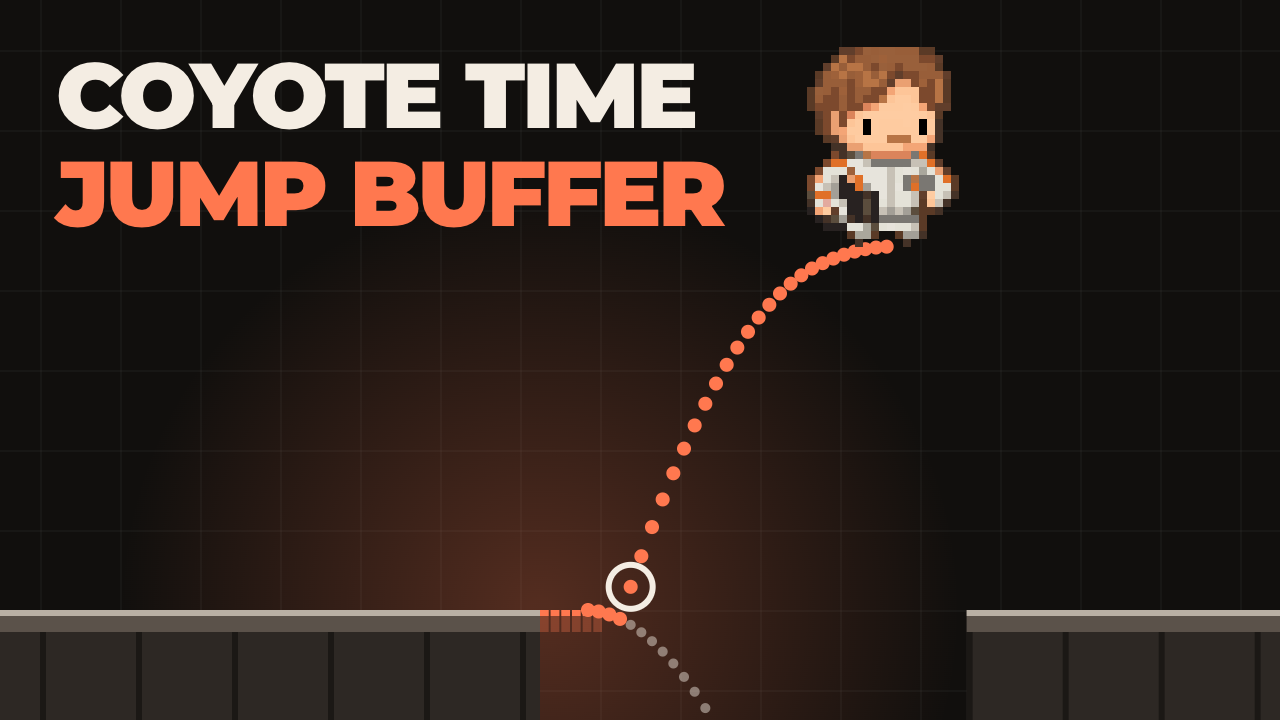
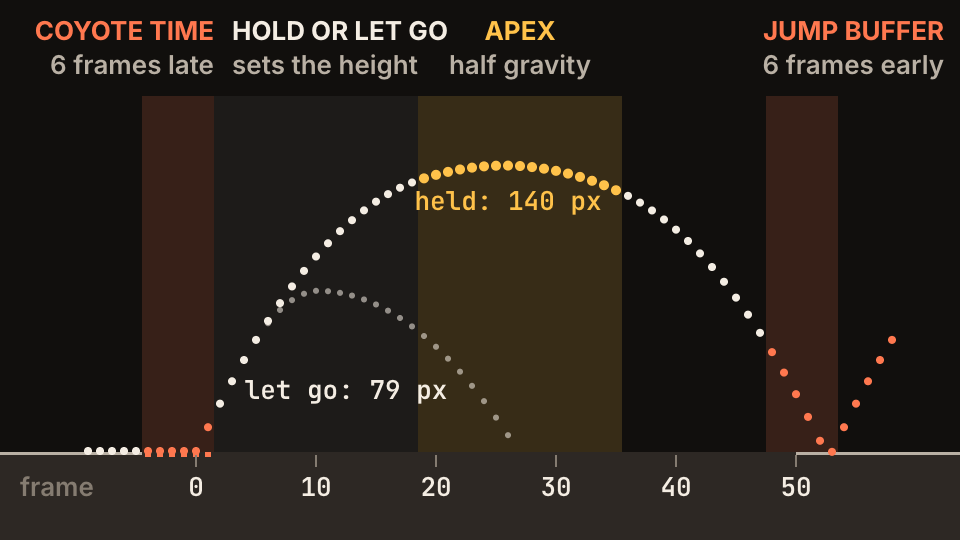
Coyote time lets a jump work for a few frames after the character has left a ledge. Jump buffering remembers a press made a few frames before landing and fires the jump on landing. A window of 6 frames, 100 ms at 60 physics ticks per second, is a good place to start for both.
Both fix the same gap: the player pressed in time by what they saw, and the game says the feet were already off the floor, or not on it yet. This guide adds both to a CharacterBody2D, plus variable jump height and apex gravity, in under 60 lines of GDScript.
Every measurement below comes from running that script in Godot 4.5.1. In the side by side demos, each image is one physics tick, so you can count frames. Both characters run the same script and read the same button, with one export changed. The character is the Pilot from Pinglets, our desktop pet.
How does coyote time work?
Keep a timer that refills on every tick the character stands on the floor and runs down in the air. Allow the jump while the timer has time left, instead of asking is_on_floor().
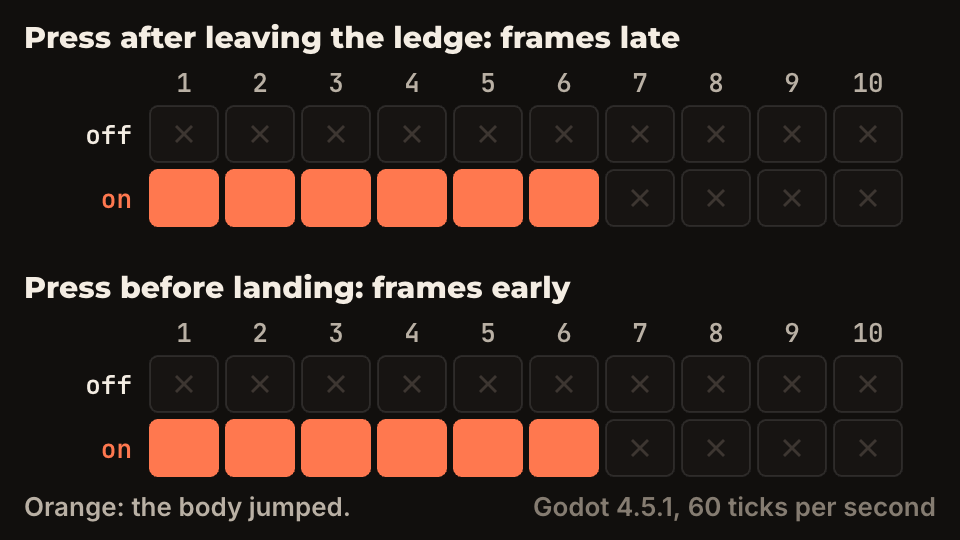
With coyote_time = 0.1 a press works on frames 1 to 6 after the ledge and fails from frame 7. At 240 pixels per second the character is 24 px past the edge by then, so the window behaves like 24 px of floor that only counts for jumping. That gives a rule for choosing the value: keep run_speed * coyote_time shorter than the character is wide, or people will see it running on air. Celeste's public player code uses the same 0.1 seconds.
The mistake most people make is leaving the timer full when the jump fires. After a normal jump the character is in the air with time left, so a second press counts as a floor jump. Removing the _coyote_left = -1.0 line from the script gave a double jump on any press in the first 6 frames after takeoff. With the line, none.
If enemies can knock the character off a ledge, decide whether a jump should still work. If it should not, set _coyote_left to -1.0 in the knockback code.
_coyote_left -= delta

if is_on_floor():
	_coyote_left = coyote_time
How do you add jump buffering?
It is the same idea pointed the other way. A press starts a second timer, and the jump fires on any tick where both timers have time left. That single condition covers coyote jumps, buffered jumps and normal jumps, because a character standing still with a fresh press has both timers full.
Read the button in _physics_process. Godot's `is_action_just_pressed` reports the press on the physics tick, and it does not miss a press and release that happen quickly.
A long buffer has a cost: the jump can fire after the player stopped wanting it. At 0.1 seconds the delay is small. At 0.3 seconds, 18 frames, a character can leave the floor 0.3 seconds after the press, which is enough to jump off a platform the player has just decided to stay on.
if Input.is_action_just_pressed("jump"):
	_buffer_left = jump_buffer

if _buffer_left >= 0.0 and _coyote_left >= 0.0:
	velocity.y = -jump_speed
	_jumping = true
	_buffer_left = -1.0 # Spend the press.
	_coyote_left = -1.0 # No second jump in the air.
How do you make jump height depend on how long the button is held?
Start every jump at full speed and make gravity heavier while the character is rising with the button up. A tap gives a short hop, a hold gives the full jump, and the arc has no kink because the speed never jumps. These are the heights measured with release_gravity = 3.0. Past 26 frames the button no longer matters.
The smallest hop is close to jump_height / release_gravity, so pick the value from the hop you want: 43 px on paper here, 50 px measured.
Watch out for buffered taps. The common version halves the speed when is_action_just_released fires. A tap buffered before landing is already released when the jump starts, so that event never reaches a rising character and the tap becomes a full jump. With the same press and release before landing, that version measured 136 px and the check below measured 50 px.
The _jumping check keeps this rule away from other upward motion, so a spring pad launch is not cut short when the button is up.
if _jumping:
	var held := Input.is_action_pressed("jump")
	if velocity.y < 0.0 and not held:
return gravity * release_gravity- Held 1 frame: 50 px
- Held 5 frames: 79 px
- Held 10 frames: 107 px
- Held 20 frames: 135 px
- Held 26 frames or more: 140 px
What does apex gravity do to a jump?
Apex gravity lowers gravity near the top of a jump while the button is held, so the character hangs for a moment and the player has time to aim the landing. Maddy Thorson lists half gravity at the jump peak in Celeste & Forgiveness. The script uses a band of 150 px/s around zero speed, about a fifth of the jump speed.
Read the last number in each line before you build levels. Height barely moves, but at 0.5 the jump carries 32 px further. If you measure your gaps with apex gravity off and turn it on later, every gap gets easier, so settle this value first or measure again after changing it.
Stop at 0.5 unless you want floating. At 0.25 the jump lasts more than a second. If falls feel slow after this change, return a larger gravity when velocity.y is positive in the same function. Kyle Pittman's GDC talk covers that faster fall and how to build a jump from a target height and distance.
if held and absf(velocity.y) < apex_speed:
	return gravity * apex_gravity
apex_gravity = 1.0: 136 px high, 44 frames in the air, 180 px longapex_gravity = 0.75: 137 px high, 46 frames in the air, 188 px longapex_gravity = 0.5: 140 px high, 52 frames in the air, 212 px longapex_gravity = 0.25: 147 px high, 68 frames in the air, 276 px long
The full GDScript controller for Godot 4.5
Attach this to a CharacterBody2D with a CollisionShape2D. Add three actions in Project > Project Settings > Input Map: move_left, move_right and jump. Setting any export to the value in its comment turns that feature off, which is all the left side of each demo does.
Order matters at the top of _physics_process. `is_on_floor()` only updates inside move_and_slide(), so at that point it describes the last tick, and the timers are set from it before the jump is decided.
jump_height and time_to_apex give you gravity and jump speed, so you tune in pixels and seconds: gravity = 2h / t² and jump_speed = 2h / t. Here that is 2006 px/s² and 722 px/s. The measured peak with apex gravity off is 136 px and not 130, because the takeoff tick has no gravity and motion is stepped tick by tick. Treat the formula as close, and measure.
Horizontal speed is instant to keep the script about jumping. Add acceleration when you need it. When wall jumps and dashes arrive, move this into a state machine before the conditions pile up.
# player.gd: attach to a CharacterBody2D with a CollisionShape2D. Godot 4.5.
# Needs three input actions: move_left, move_right and jump.
extends CharacterBody2D

@export var run_speed := 240.0     # pixels per second
@export var jump_height := 130.0   # pixels, before apex gravity adds a little
@export var time_to_apex := 0.36   # seconds from takeoff to the top

@export var coyote_time := 0.1     # seconds after a ledge. 0 turns it off.
@export var jump_buffer := 0.1     # seconds before landing. 0 turns it off.
@export var release_gravity := 3.0 # rising, button up. 1 turns it off.
@export var apex_gravity := 0.5    # near the top, button down. 1 turns it off.
@export var apex_speed := 150.0    # pixels per second around the top
@export var max_fall_speed := 900.0

# Tune in pixels and seconds, let these two follow.
@onready var gravity := 2.0 * jump_height / (time_to_apex * time_to_apex)
@onready var jump_speed := 2.0 * jump_height / time_to_apex

var _coyote_left := -1.0
var _buffer_left := -1.0
var _jumping := false


func _physics_process(delta: float) -> void:
	_coyote_left -= delta
	_buffer_left -= delta

	# is_on_floor() still describes the move_and_slide() of the last tick.
	if is_on_floor():
		_coyote_left = coyote_time
		_jumping = false
	if Input.is_action_just_pressed("jump"):
		_buffer_left = jump_buffer

	if _buffer_left >= 0.0 and _coyote_left >= 0.0:
		velocity.y = -jump_speed
		_jumping = true
		_buffer_left = -1.0 # Spend the press.
		_coyote_left = -1.0 # No second jump in the air.
	elif not is_on_floor():
		velocity.y = minf(velocity.y + _current_gravity() * delta, max_fall_speed)

	velocity.x = Input.get_axis("move_left", "move_right") * run_speed
	move_and_slide()


func _current_gravity() -> float:
	if _jumping:
		var held := Input.is_action_pressed("jump")
		if velocity.y < 0.0 and not held:
			return gravity * release_gravity
		if held and absf(velocity.y) < apex_speed:
			return gravity * apex_gravity
	return gravity
How do you test coyote time and jump buffer values?
Count frames before you judge by feel. The chart below comes from a script that spawns a body, presses jump on one exact frame and records whether it jumped, once per cell. Godot runs that with no window and faster than real time: godot --headless --fixed-fps 60 --script measure.gd.
One trap when you fake input: Input.action_press() called inside a physics tick is read on the next tick. That moved every result in this test by one frame until the press was moved between ticks, which is when real input arrives.
Count seconds in _physics_process, never rendered frames in _process, or the window changes with the refresh rate of the screen. With Physics Ticks Per Second at 120 the same 0.1 seconds measured 12 frames, still 100 ms.
Then watch other people play, and look at the edges of platforms: a player who falls right after pressing jump is asking for a longer window. When the numbers are right, the jump can still look flat, which is a separate job: see the game feel checklist. These are the values to start from:
- Coyote time 0.1 seconds, while
run_speed * coyote_timestays under the width of the character. - Jump buffer 0.1 seconds. Go longer only if the game has no ledges where an extra jump hurts.
release_gravity3, chosen from the smallest hop you want.apex_gravity0.5 withapex_speedat about a fifth of the jump speed. Measure your gaps after any change.
Questions people ask
- How many frames should coyote time be?
- Start at 6 frames, which is 100 ms at 60 physics ticks per second. Lower it if you can see the character running on air, which depends on how fast it runs.
- Does coyote time make a platformer easier?
- A little. The takeoff can happen up to
run_speed * coyote_timepast the edge, 24 px in this setup, and the whole jump moves forward by that much. Build and test your gaps with it on. - Does this need Godot?
- No. The logic is two timers and one condition, so it carries over to any engine with a fixed update and a way to ask whether the character is on the floor. Only the floor check and the input calls change.
Sources and further reading
- Godot documentation: CharacterBody2D
- Godot documentation: Using CharacterBody2D/3D
- Godot documentation: Input
- Godot documentation: ProjectSettings
- Godot documentation: Command line tutorial
- Maddy Thorson: Celeste & Forgiveness
- Celeste source code: Player.cs
- GDC Vault: Math for Game Programmers: Building a Better Jump