App Store guide · · 6 min read
In-app purchases for an iOS game: setup, testing and review
Pick the right in-app purchase type, create it in App Store Connect, test in sandbox and TestFlight, and pass review, with Godot notes and a tested script.
Which in-app purchase type does a game need?
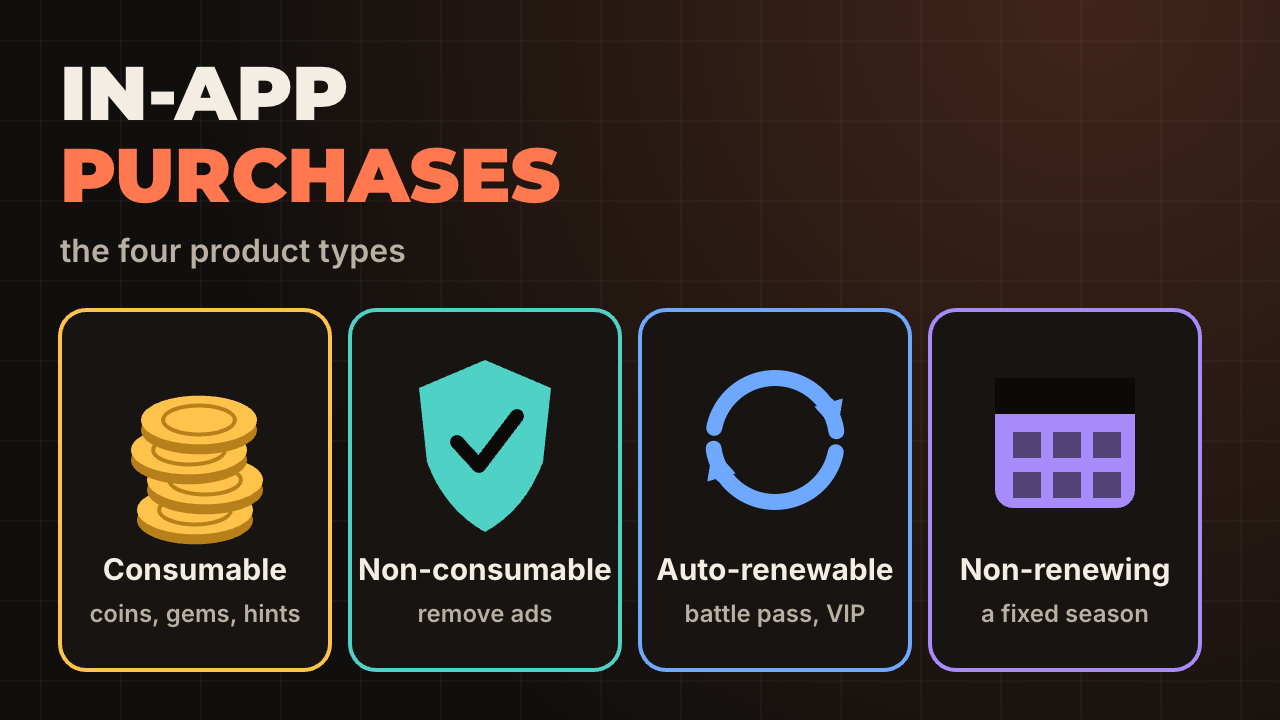
Use a consumable for things players spend, a non-consumable for things they keep, and a subscription only when you keep delivering something. Apple lists four types: consumable (in-game currency), non-consumable (a level pack, or removing ads), auto-renewable subscription, and non-renewing subscription, which grants access for a fixed time and does not renew by itself.
Most casual games need two: a coin pack and one "remove ads". Our Burger Stack has in-app purchases and ads, and our write-up on ads without tracking explains why neither needs a tracking declaration.
Subscriptions carry extra rules in guideline 3.1.2: they must provide ongoing value, run for at least 7 days, work on all of the player's devices, and say clearly what the player gets for the price before they subscribe. If a subscription is just a coin pack on a timer, a consumable is the honest choice.
What must be ready before you can create or test a purchase?
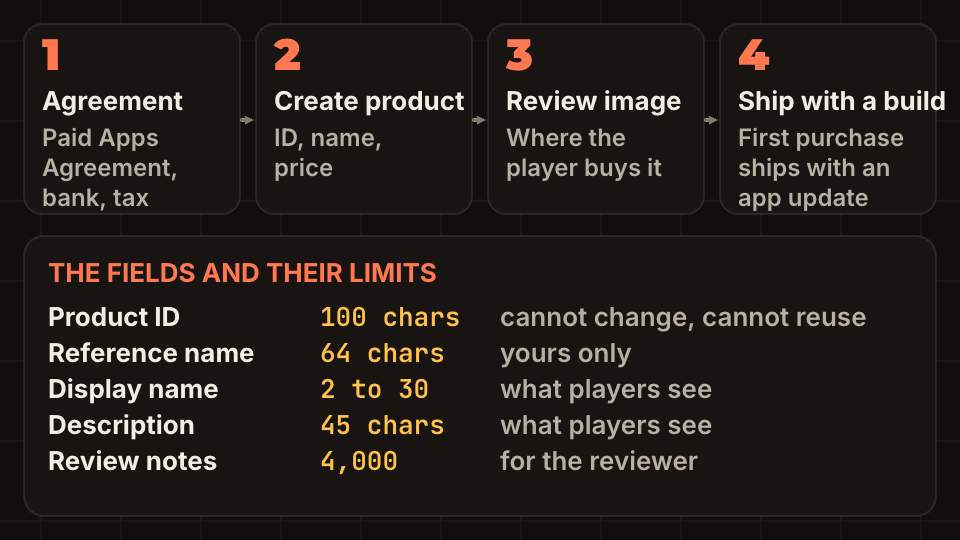
The Account Holder has to accept the Paid Apps Agreement in App Store Connect and fill in the banking and tax details. Without it you cannot test in the sandbox, as Apple's sandbox page lists it as the first requirement. Then the app needs the In-App Purchase capability on its bundle ID, signed with a provisioning profile that includes it, and product IDs that match between Xcode and App Store Connect.
Do this early in the project, not the week of release. Agreements and tax information can sit in review, and nothing else here works without them.
How do you create a purchase in App Store Connect?
Open the app, go to In-App Purchases under Monetization, click the plus button and choose Consumable or Non-Consumable. Then fill in the fields. These limits are from Apple's help page as of November 2026:
The first purchase of an app cannot be submitted alone: it has to go with a new app version. A purchase also needs a review screenshot that shows where players buy it. Apple does not show it on the App Store, and once uploaded you can replace it but not remove it.
- Product ID: up to 100 characters, letters, numbers, hyphens, periods and underscores. It cannot be edited after saving and cannot be reused in the same app, even after you delete the purchase.
- Reference name: up to 64 characters, only for you.
- Display name: 2 to 30 characters, localized. Description: up to 45 characters, localized.
- Review notes: up to 4,000 characters.
How do you add purchases to a Godot game on iOS?
Godot has no purchase API of its own, so you use a StoreKit plugin. The docs mention an InAppStore singleton from the godot-ios-plugins project, marked as work in progress. In our games the setup is a plugin whose .gdip file sits in the project's ios/plugins folder and links StoreKit.framework, enabled in the export preset: Burger Stack uses plugins/IOSInAppPurchase=true, and Tidy Tiles uses a StoreKit 2 plugin enabled with plugins/godot-storekit2=true. The option name is the plugin's name from its .gdip file.
Whatever plugin you use, the flow is the same, and it is why the game never sees payment data: ask for products by ID, show the localized price Apple returns, let Apple run the purchase, then grant the item and finish the transaction. Do the grant in one place that cannot give the item twice. The same transaction can arrive again after a restart or a restore, and a double grant of coins is a bug players do not report.
The script below is a small autoload that does that. The plugin callback calls grant() with the product ID and the transaction ID. We ran it in Godot 4.5.1: the first call returns true and the second, with the same transaction, returns false.
extends Node
## Autoload that grants purchases once, whatever the store plugin sends.
signal purchase_granted(product_id: String)

const SAVE_PATH := "user://purchases.cfg"

var _granted: Dictionary = {}   # transaction id -> product id


func _ready() -> void:
	var cfg := ConfigFile.new()
	if cfg.load(SAVE_PATH) == OK:
		for key in cfg.get_section_keys("granted"):
			_granted[key] = cfg.get_value("granted", key)


func has_bought(product_id: String) -> bool:
	return product_id in _granted.values()


## Call this from the plugin's "purchase succeeded" callback, then finish the transaction.
func grant(product_id: String, transaction_id: String) -> bool:
	if _granted.has(transaction_id):
		return false   # the same transaction can arrive again after a restart or a restore
	_granted[transaction_id] = product_id
	_save()
	purchase_granted.emit(product_id)
	return true


func _save() -> void:
	var cfg := ConfigFile.new()
	for key in _granted:
		cfg.set_value("granted", key, _granted[key])
	cfg.save(SAVE_PATH)
How do you test in-app purchases?
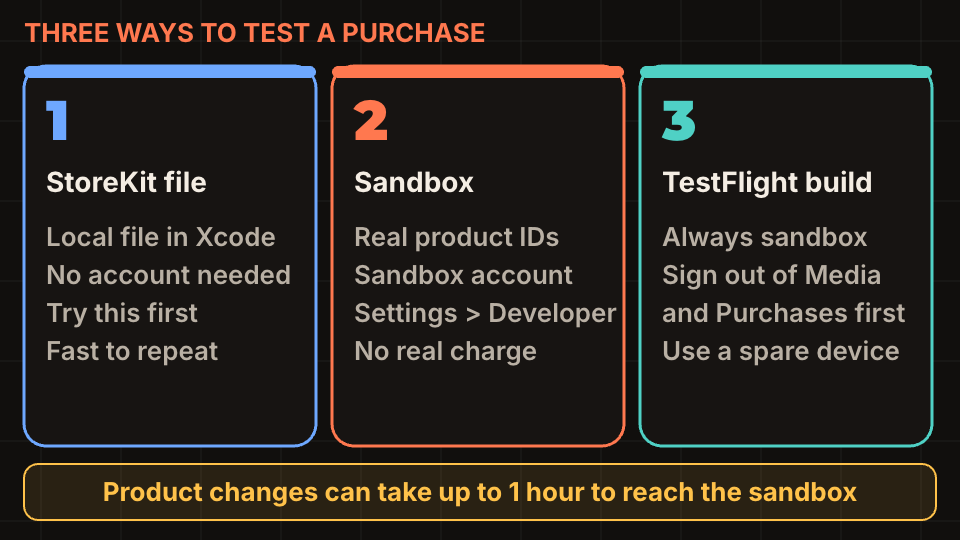
Start with a local StoreKit configuration file in Xcode, which needs no account. Then test with real product IDs in the sandbox. Create Sandbox Apple Accounts in App Store Connect, up to 10,000 of them. A sandbox account only works for apps in the same developer account.
On a development build, the sandbox account appears under Settings > Developer after your first purchase attempt, and you sign in with it when the purchase sheet asks. The sheet shows [Environment: Sandbox] when it works. On a TestFlight build the app always uses the sandbox, but to reach the sandbox controls you sign out of Media & Purchases, then sign in under Settings > Developer. Apple warns this can remove access to purchased content, so use a spare device.
From the same screen you can clear purchase history to buy the same product again. Changes to product metadata can take up to an hour to show in the sandbox, so if a product is missing, wait before you debug. More on beta builds in our TestFlight guide.
What does App Review check, and what is a restore button for?
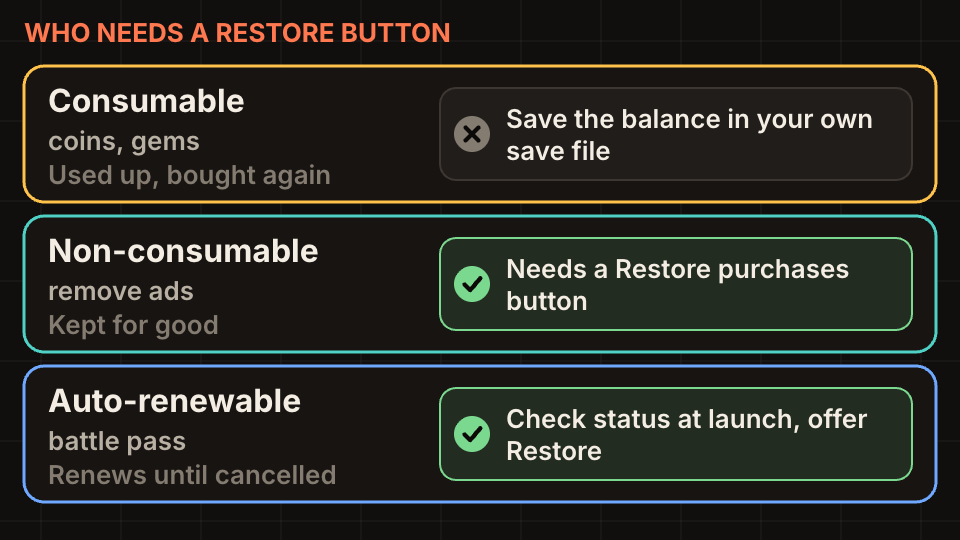
Guideline 3.1.1 requires a way to restore purchases that can be restored, and says credits and in-game currency must not expire. Guideline 2.1(b) asks that purchases be complete, visible to the reviewer and working, and that you explain in the review notes where to find any the reviewer cannot reach. Guideline 2.3.2 asks that your metadata says clearly when items need an extra purchase.
Burger Stack has a Restore purchases button at the bottom of the Shop and in Settings, because the reviewer expects to find one for a non-consumable like No ads. A player who reinstalls or buys a new phone uses it.
If you sell randomized items, the odds of each outcome must be shown before purchase, and the age rating questionnaire treats loot boxes as 9+ content. Real-money gaming credit cannot be bought with in-app purchase (5.3.3). A rejection over purchases is usually a missing restore button or a purchase the reviewer could not find, and the fix is a note: see App Store rejection reasons.
Checklist before you submit a game with purchases
Run this next to the first submission checklist.
- Paid Apps Agreement signed, banking and tax complete.
- Product IDs written down once and identical in code and App Store Connect.
- Each purchase has a display name, description, price and a review screenshot.
- The purchase is included in the build you submit, and the review notes say where to find it.
- Grant code is idempotent and finishes the transaction.
- Restore purchases button on a screen the reviewer can reach in under a minute.
- Tested in sandbox from a TestFlight build, with a cleared purchase history.
- Store text and screenshots mention items that cost extra.
Questions people ask
- Do I need a server to sell in-app purchases?
- No. A game can grant items from the confirmation Apple's StoreKit gives the app, which is how a single-player game works. A server is only needed if you want to verify purchases yourself or share them between platforms.
- Can I submit an in-app purchase on its own?
- Not the first one. Apple says the first in-app purchase in an app must be submitted together with a new app version.
- Why is my product missing in the sandbox?
- Check the Paid Apps Agreement, the product ID, and wait up to an hour after a metadata change. Also check that the test account belongs to the same developer account as the app.